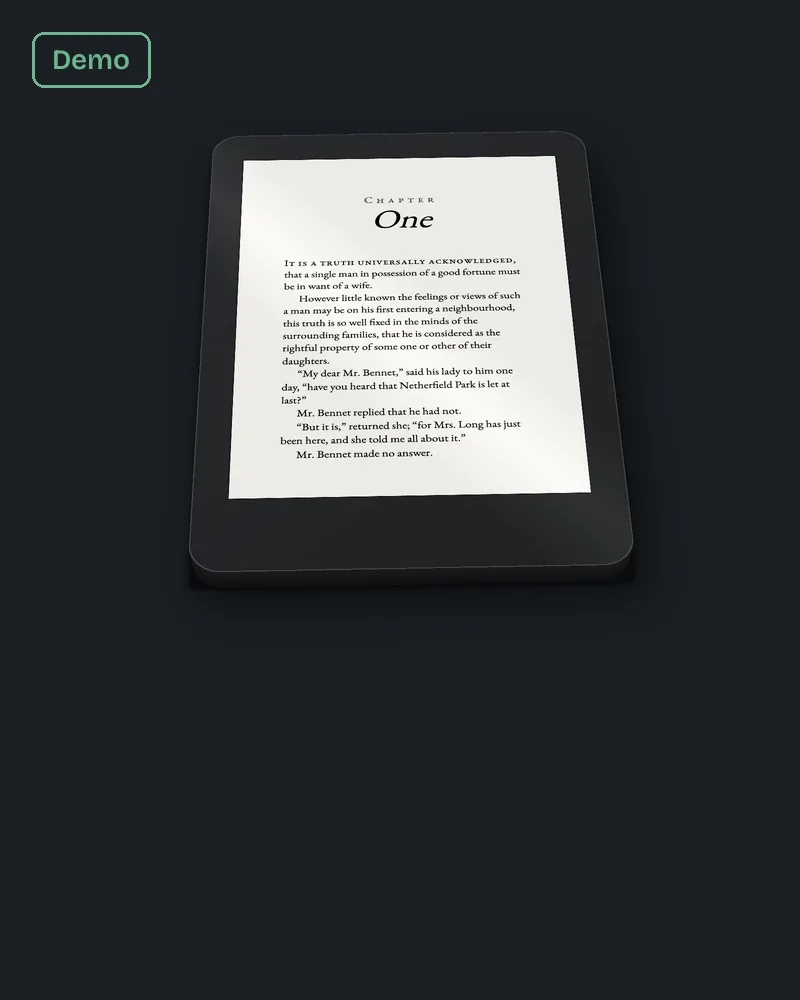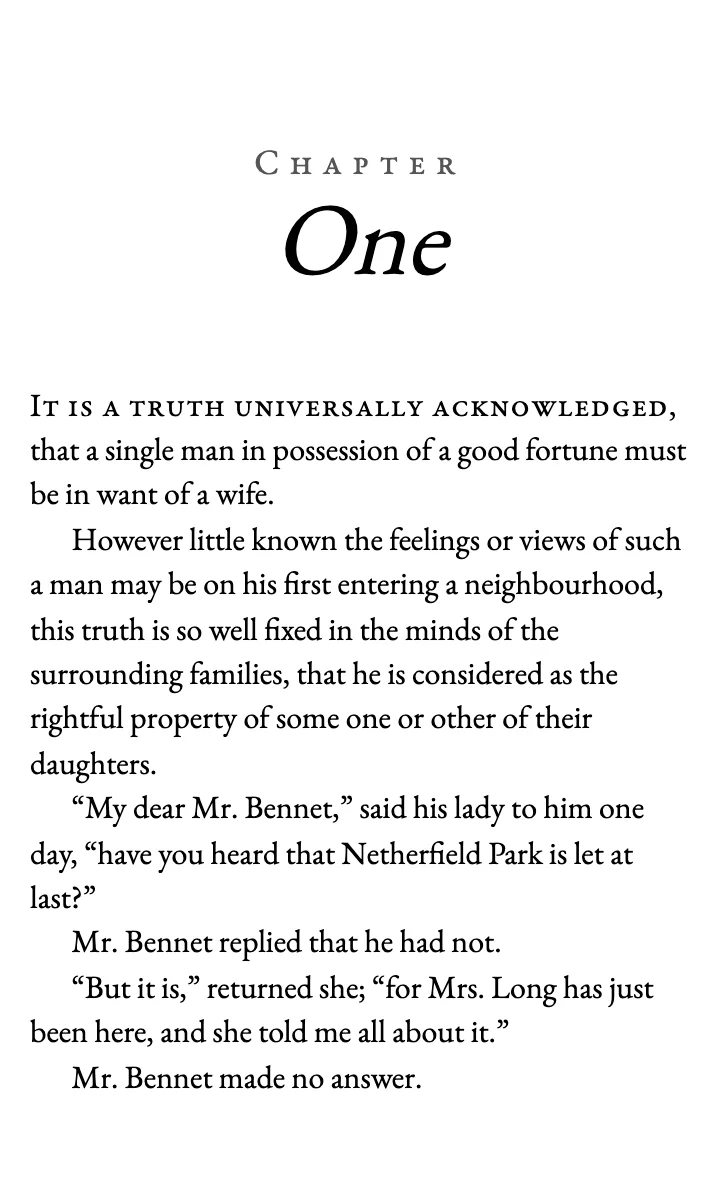
Short answer. How to format an ebook for Kindle in Google Docs takes four steps: give every chapter title the Heading 1 style, insert pictures as images, leave the cover out, and add a table of contents from the Insert menu. Then download a Word file, which KDP accepts, and open it in Kindle Previewer before you upload.
Key points
- KDP does not take a Google Doc directly. It does take Word files (DOC and DOCX).
- Google Docs downloads a Word copy from File, then Download.
- Chapter titles need Heading 1, set from Format, then Paragraph styles.
- Insert images as pictures, not drawings or text boxes.
- The cover is uploaded separately, never inside the manuscript.
- Check the Word file in Kindle Previewer before it goes to KDP.
Can you format an ebook for Kindle in Google Docs?
Yes, as long as the file you upload is not the Google Doc itself. KDP's list of ebook formats names Word files (DOC and DOCX) as a recommended format, and Google Docs can save a Word copy of any document.
So the work happens in Google Docs, and the upload is a Word file. KDP says most Word files convert well and that files with complex formatting may not, which is why the steps below keep the document plain.
If you are deciding between Word, Kindle Create and an EPUB, our post on how to format an ebook for Kindle compares the three. If you want the file built for you, that is our ebook formatting service.
How do I set up chapter headings in Google Docs?
Select the chapter title, open the Format menu, choose Paragraph styles, then Heading 1, and click "Apply Heading 1". Do it for every chapter.
This is the step that matters most. KDP's Word guidance asks for Heading 1 on chapter titles, because the Kindle table of contents is built from them. A title that is only bold and larger looks right in Google Docs and is invisible to Kindle.
Leave the body text as Normal text. One style for the body and one for chapter titles is enough for most novels.
How do I add a table of contents in Google Docs?
Click where the contents should go, then open Insert, Page elements, Table of contents, and pick a style. Google Docs builds it from your headings, so it only works after the Heading 1 step.
Our guide to a Kindle table of contents that is not working explains the two contents Kindle uses and how to test both.
How should I add images?
Insert them as pictures. KDP's Word guidance asks for images inserted as images rather than built from shapes or text boxes, and the same applies once your Google Doc becomes a Word file.
A diagram drawn with lines and text boxes may look fine on your screen and break apart in conversion. Export it as a picture first, then insert the picture.
Should the cover go in the Google Doc?
No. KDP says not to put the cover in the manuscript. You upload the cover on its own when you set up the ebook, and Kindle places it at the front for you.
What does a plain, unstyled document turn into?
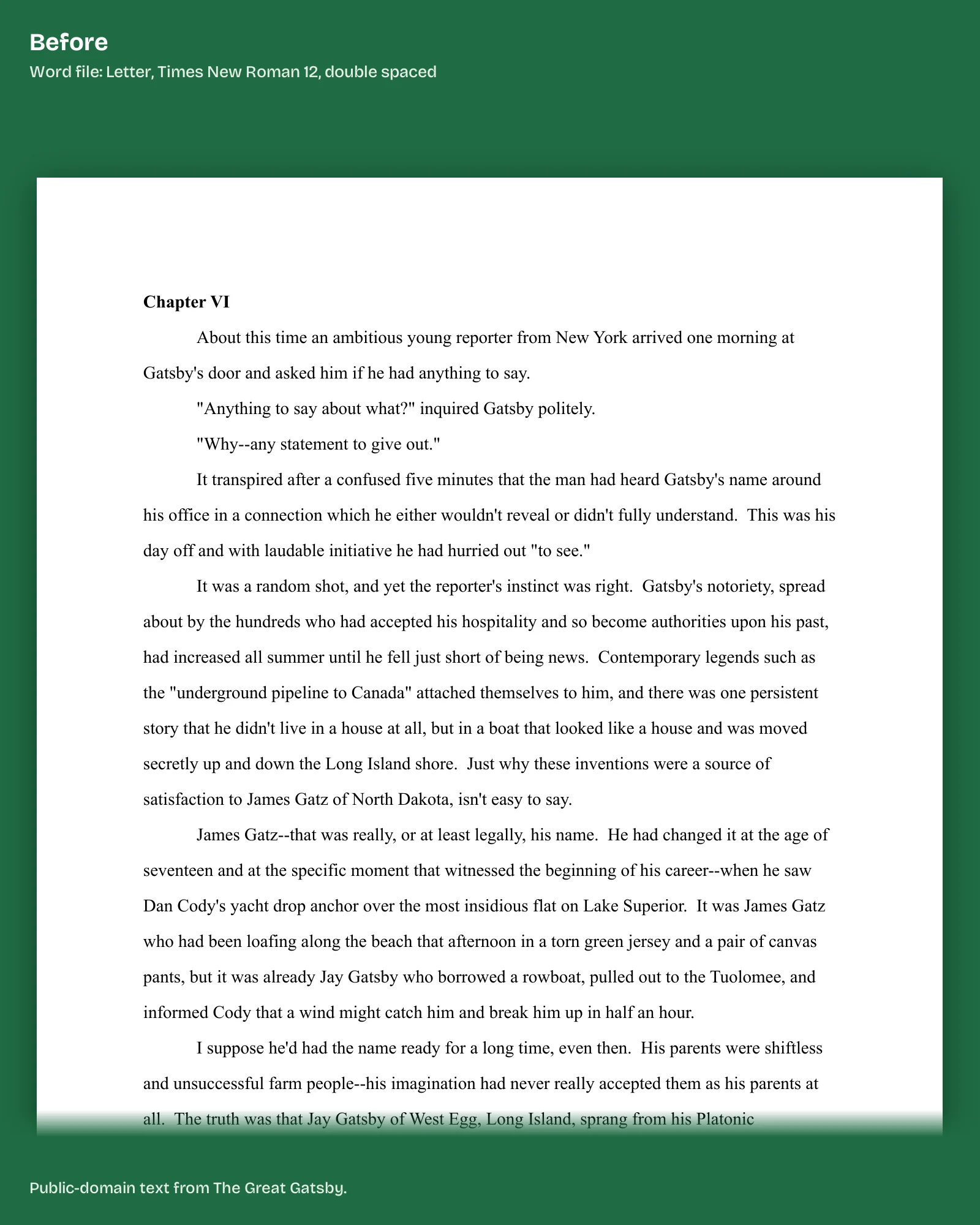
We tested this with the sample file behind our ebook page. On 13 October 2026 we opened the Word file we had made the way many manuscripts arrive: Times New Roman 12, double spaced, "Chapter 1" typed in bold, and a Tab at the start of each paragraph. It had no paragraph styles at all.
We exported it to PDF, copied the text out and built an EPUB from it. In that EPUB every paragraph locked the font at 12 pt, the indent was eight typed spaces, and the contents had one link whose label was a blank space. Nothing was wrong with the words. Kindle simply had no headings to work with.
A Google Doc with no heading styles is in the same position. The fix is the same too: Heading 1 on every chapter title before you download.
The fix we do for this: we take your Google Docs or Word manuscript and build a Kindle EPUB with a linked table of contents for $99, up to 80,000 words, in 7 business days, checked in Kindle Previewer. Ask about your ebook.
How do I download the file for KDP?
Open the document, click File, then Download, and choose the Word format. Google's help page describes the same path: File, Download, then pick a file type.
Keep the file name plain. KDP's Kindle Previewer page notes that a Word file whose name has non-ASCII characters may not open in the Previewer, so letters, numbers and hyphens are the safe choice.
How do I check the Word file before I upload it?
Open it in Kindle Previewer, Amazon's free desktop app. KDP says it opens DOC and DOCX files for English-language books.
Change the font size, switch between phone, tablet and e-reader views, and click every contents link. Fix anything in Google Docs, download again, and check again. Our KDP ebook formatting checklist lists all eight checks in the order we run them.
If you are also making a paperback, the print file is a separate job. Our post on ebook vs paperback formatting for KDP covers what changes.
What else do authors ask about Google Docs and Kindle?
No. Download it as a Word file first. KDP lists Word among its recommended ebook formats.
Google Docs and Kindle Previewer are both free to use, so you can build and check the file without paying for software.
No. Ebook text reflows with the reader's font size, so KDP's steps turn page numbers off for the Kindle contents.
Our ebook build is $99 up to 80,000 words. Our page on what book formatting costs sets out the other routes and their prices.
What should you do next?
Open your Google Doc, click into the first chapter title and look at the style box. If it says Normal text, apply Heading 1 to every chapter before anything else. If you would rather hand it over, the $99 build on our ebook formatting page comes back with the Previewer screenshots.