Short answer. Our KDP ebook formatting checklist has eight checks before you upload: the file is Word, KPF or EPUB; every chapter title uses Heading 1; the contents links work; the cover is not inside the file; images are real images; body text changes size; margins are narrow; and the book reads cleanly in Kindle Previewer on phone, tablet and e-reader.
Key points
- Most of the checks are about structure, not looks.
- Chapter headings drive the table of contents, so they come first.
- The cover is uploaded on its own.
- Kindle Previewer is free and shows the book by device, orientation and font size.
- Reflowable text looks different on every screen. That part is expected.
What is on a KDP ebook formatting checklist?
Eight checks, in the order we run them on every book. Each one comes from KDP's own help pages.
- The file type. Word (DOC or DOCX), KPF from Kindle Create, or EPUB.
- Heading 1 on every chapter title. Bold text at a bigger size does not count.
- A table of contents that opens. Both the contents page and the Kindle menu.
- No cover in the manuscript.
- Images inserted as images. No text boxes or shapes holding pictures.
- Body text that changes size. Change the font size in Kindle Previewer; if the text stays put, a fixed size is set on it.
- Narrow side margins. In the phone view the text should run close to the screen edges, not sit in a thin column.
- A full read in Kindle Previewer across phone, tablet and e-reader views.
Each of these is part of our ebook formatting service, and you can run every one yourself with free tools.
Which file type should I upload?
Word, KPF or EPUB. KDP lists all three among its recommended ebook formats. It says most Word files convert well but files with complex formatting may not, and it recommends checking an EPUB in Kindle Previewer before upload.
MOBI is still on KDP's list, but KDP stopped accepting it for fixed-layout ebooks in March 2025. Our post on how to format an ebook for Kindle compares the three main routes.
How do I check the headings and the table of contents?
Click into each chapter title and read the style name. It should say Heading 1. KDP's table of contents steps build from that style, so a chapter without it will be missing from the contents.
Then check both tables of contents. KDP describes a contents page with links inside the book and a separate Kindle menu, and either can break on its own. Our guide to a Kindle table of contents that is not working covers the fixes.
What about the cover and images?
Leave the cover out of the manuscript. KDP asks for it to be uploaded separately, so a cover inside the file tends to show twice.
Insert every picture as an image. KDP's Word guidance asks for images, not shapes or text boxes, which can break apart when the file converts.
What does it look like when a file fails the checklist?
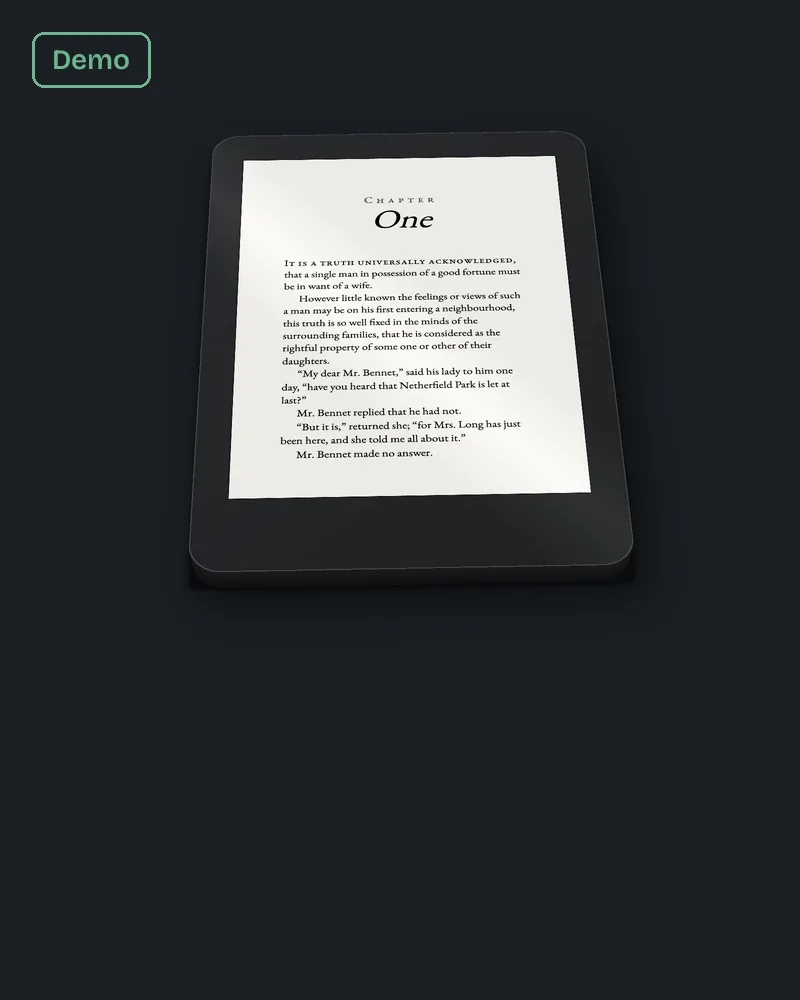
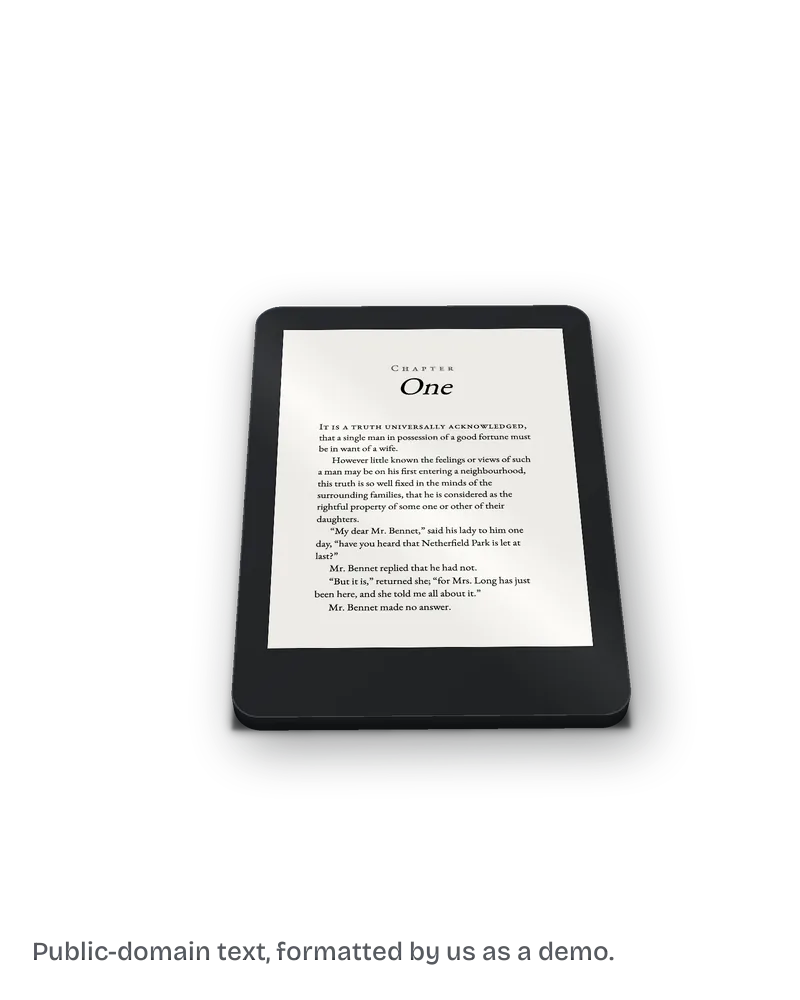
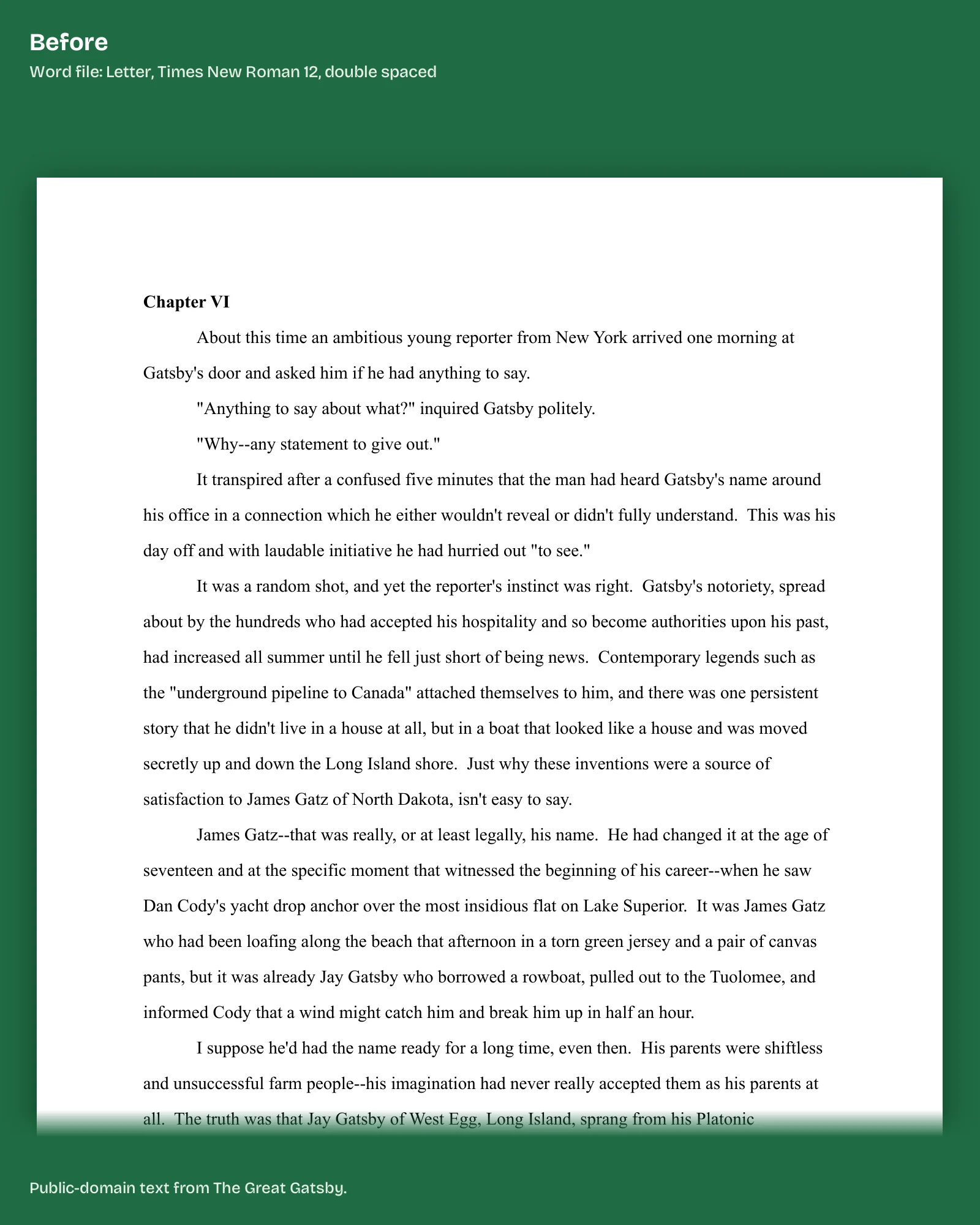
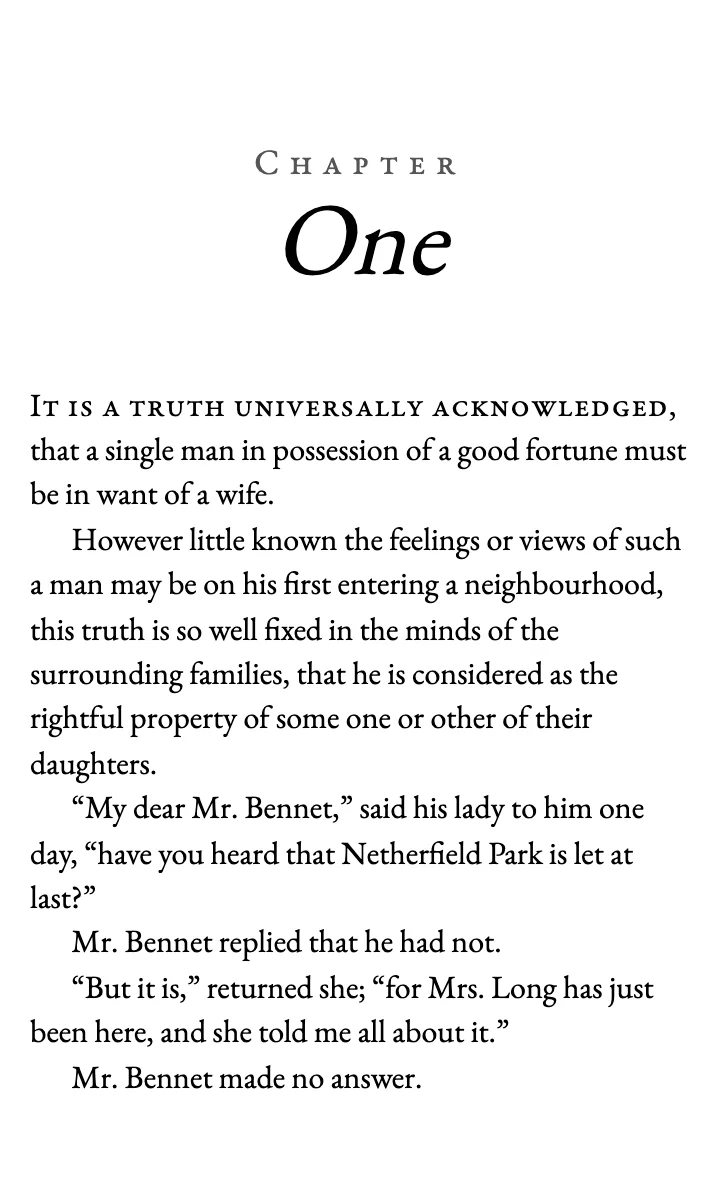
We ran these checks on the two sample EPUBs behind our ebook page, both made from the first chapter of Pride and Prejudice, on 13 October 2026.
The "before" file, built from text copied out of a Word PDF export, failed three. Its chapter title was a bold paragraph rather than a heading. Its table of contents had one link whose label was a blank space. And every paragraph set the font to Times New Roman at 12 pt, so the reader's size setting had nothing to change.
The "after" file passed those three. The title is a heading with an anchor, the contents link reads "Chapter One", and the style sheet sets no size on the body text. Its side margins are 0.4 em, which keeps the text wide on a phone.
The fix we do for this: we build your EPUB with a linked table of contents for $99, up to 80,000 words, in 7 business days, run this checklist in Kindle Previewer and send you the screenshots. Ask about your ebook.
How do I run the Kindle Previewer check?
Open the file in Kindle Previewer, Amazon's free desktop app. KDP says it lets you preview by device, orientation and font size. Go through the book in phone, tablet and e-reader views, at a small and a large font size, and click every contents link.
Our Kindle Previewer guide walks through the app screen by screen.
Why does my ebook look different on every device?
Because it is supposed to. KDP explains that reflowable text moves to fit the screen and the reader's font size, so the words on a given page will differ from one device and font size to the next. That is not a formatting error.
What should not change is structure: headings stay headings, links still land, images still show. Check those, not where a line breaks.
What if Kindle Previewer shows boxes instead of letters?
On Windows, KDP says the Previewer can show boxes when a font for an Indic language is missing from your computer. Install that language pack in Windows and open the file again before you change anything in the book.
What else do authors ask about the KDP ebook checklist?
KDP points EPUB makers to its Kindle Publishing Guidelines, a long technical document. For a Word or Kindle Create book, the help pages cover it in parts: manuscript formats, formatting in Word, the table of contents, and Kindle Previewer. This checklist pulls those into one order.
Kindle Previewer covers most of it. Tables are the exception worth checking on a device if you have one.
No. KDP runs its own checks after upload. Our post on why KDP keeps rejecting a book lists the common reasons.
No. KDP's steps turn them off, because the text reflows.
Our ebook build, with this checklist and the screenshots, is $99 up to 80,000 words. Our page on what book formatting costs compares the other routes.
What should you do next?
Start with check 2. Open your manuscript, click into the first chapter title and read the style name. If it is not Heading 1, fix that before anything else. If you would rather hand the whole list over, send it through our ebook formatting page.