Short answer. "KDP keeps rejecting my book" nearly always means one of ten formatting checks failed: page size, margins, gutter, bleed, fonts, blank pages, template text, a title mismatch, image resolution or text size. KDP's Print Previewer names the check and the pages. Fix it in the source file, export a new PDF and upload again.
You finished the book, uploaded it, and KDP sent it back. The email was short, and the fix was not obvious. "KDP keeps rejecting my book" is one of the most common things authors ask, and the answer is nearly always in KDP's own help pages.
This post goes through ten causes in plain terms, with the fix for each. If you would rather not spend an evening on it, we fix KDP-rejected files: send us the rejection message and we tell you free what failed.
KDP keeps rejecting my book: which check is flagging it?
One of two checks is flagging it: the Print Previewer, which runs when you upload, or KDP's review of your files after you submit. The Previewer flags errors you must fix before you can submit and links to the affected pages. After review, KDP emails you with direct links to the errors in the Print Previewer.
- The Print Previewer runs when you upload. It flags errors you must fix before you can submit. For each one it explains the problem and links to the affected pages. It checks things like margins, cover size and fonts, and it can catch problems you cannot see on the page.
- KDP reviews your files after you submit. If it finds issues, it emails you with direct links to the errors in the Print Previewer and instructions for fixing them.
Either way the cycle is the same: fix the file in the program you made it in, export a new PDF, and upload it again. Source: Fix Paperback and Hardcover Formatting Issues.
What are the 10 formatting errors?
The ten formatting errors are page size, margins, gutter, bleed, fonts, blank pages, template text, a title mismatch, image resolution and text size. KDP's Print Previewer names the check and the pages. Fix each one in the source file, export a new PDF and upload again.
1. The page size does not match your trim size
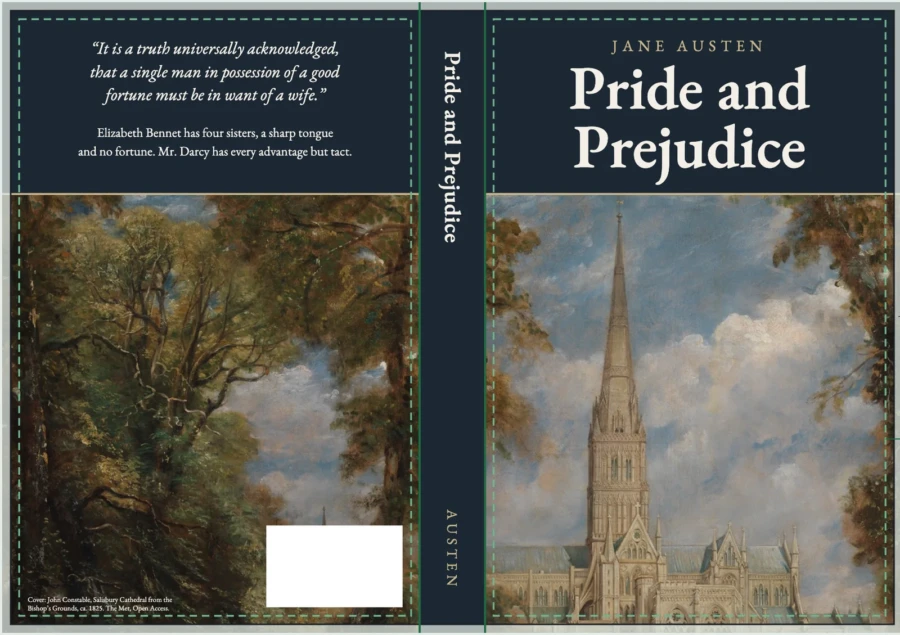
Your trim size is the size of the finished page. The page size of your file has to match it. A 6 x 9 inch book needs a 6 x 9 inch page in Word or your layout tool, not the default letter-size page. Set the page size first, before you add content, and re-do the layout if you change the trim size later. If the book uses bleed, the page is slightly larger (see error 4).
KDP's default trim size is 6 x 9 inches, the most common size for U.S. paperbacks. Source: Set Trim Size, Bleed, and Margins.
2. Content sits outside the margins
KDP sets minimum margins. Top, bottom and outside margins must be at least 0.25 inch for a book without bleed, and 0.375 inch for a book with bleed. Text, page numbers, headers and images (unless they bleed) must stay inside them.
Watch for things you cannot see. KDP's help page says spaces that extend outside the margins "are considered text characters and will trigger an error in Print Previewer", even when the page looks clean. Highlighting the text shows a string of spaces running past the margin. In Word, turn on the pilcrow (¶) button to show hidden characters, and press Ctrl+A to highlight everything on the page and spot stray objects. Source: Fix Paperback and Hardcover Formatting Issues, section "Text boxes, spaces, and hidden characters".
Our step-by-step guide to formatting a book for KDP in Word walks through the rest of the Word setup.
3. The gutter is wrong for your page count
The inside margin, called the gutter, has to grow as the book gets thicker, so the text does not disappear into the spine. KDP's minimums are:
| Page count | Inside (gutter) margin, minimum |
|---|---|
| 24 to 150 | 0.375 inch |
| 151 to 300 | 0.5 inch |
| 301 to 500 | 0.625 inch |
| 501 to 700 | 0.75 inch |
| 701 to 828 | 0.875 inch |
The trap: you set the gutter for a 140-page draft, then the book grows to 160 pages after edits. Recheck the gutter every time the page count crosses a line in this table.
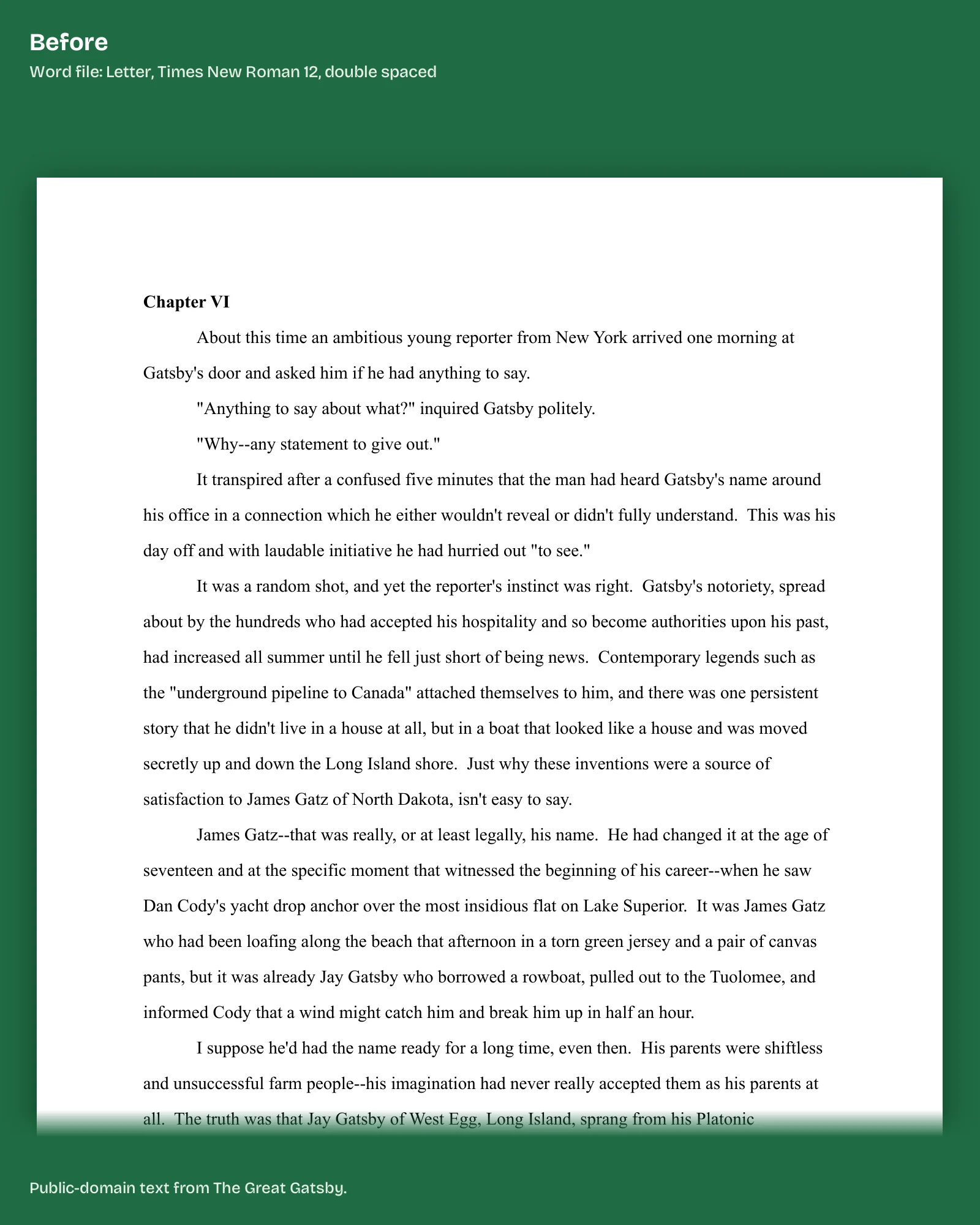
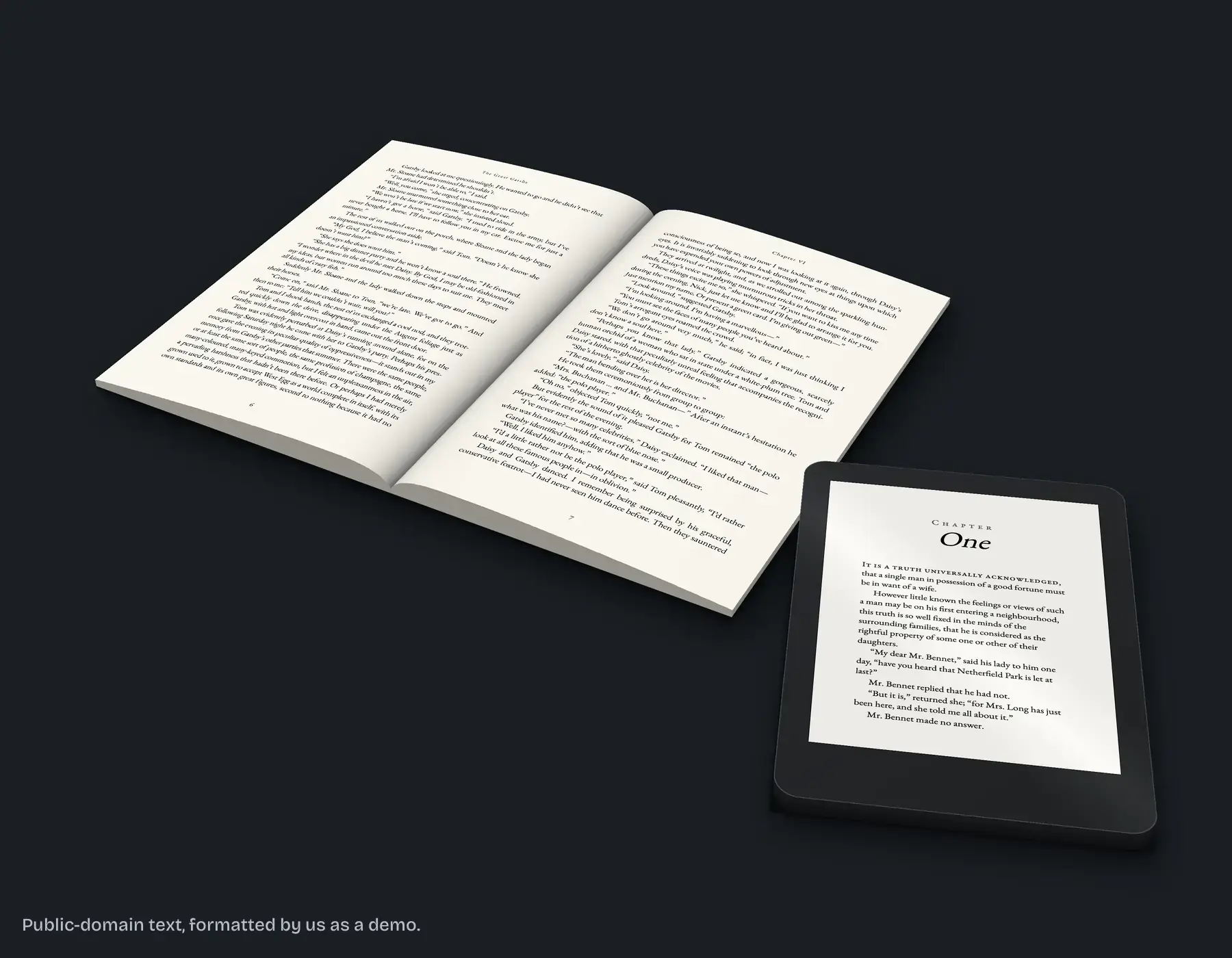
Formatting alone can move the count. When we set a 6 x 9 sample chapter from The Great Gatsby on October 10, 2026, 12 pages in Word became 14 pages in the finished layout. We cover the numbers in more detail in our post on KDP margins for 6x9 and other trim sizes by page count.
4. Bleed is missing, or set up in the wrong place
Bleed is only needed when images, backgrounds or illustrations reach the edge of the page. A text-only interior does not need it. KDP trims 0.125 inch off the top, bottom and outside edges, so an image that should reach the edge must extend that far past the trim line.
Two rules catch people out. First, if even one page needs bleed, KDP says to set up the whole file with bleed. Second, what you tell KDP in the print options has to match the file. A file built with bleed uploaded as "no bleed", or the reverse, fails. Covers always need bleed.
5. Fonts are not embedded
KDP says all fonts should be fully embedded in every interior and cover file. When you export to PDF, turn on the option to embed fonts. A font whose licence does not allow commercial use cannot be embedded or printed, and the Previewer will keep flagging it until you swap it for one you can use.
Errors 1 to 5 are the fix we do. Our KDP rejected file fix starts with a free diagnosis of KDP's message, then rebuilds the interior at your trim size with the margins, gutter and fonts set for your page count.
6. Too many blank pages
KDP allows no more than 4 consecutive blank pages at the beginning or middle of a manuscript, and no more than 10 at the end. This usually happens when someone presses Enter many times to push a chapter to a new page instead of using a page break or "page break before" in the chapter heading style.
7. Template text is still in the file
If you started from a template, KDP asks you to customise or remove all placeholder text. Leftover "Insert your title here" lines in the front matter, headers, footers or the author bio can cause an upload error or a rejection. Search the file for the placeholder wording before you export.
8. The title or author name does not match your book details
Your interior and cover files have to match the book details you entered during title setup. KDP says even small differences count, such as an abbreviated author name or a missing middle initial. Compare the title page, copyright page and cover with the title setup screen, character for character.
9. Images are too low in resolution
KDP recommends images of at least 300 dots per inch. Pictures pulled from a web page are usually 72 or 96, which print soft. Replace them with the original files. KDP's page also lists further guidance on halftones and colour, so check it if your book is illustration-heavy.
10. Text is too small or cut off
KDP recommends a minimum of 7-point text, and text should not be overlapped, cut off or hard to tell from its background. This applies to the cover and to text inside images too. KDP also lists text boxes among the things it checks, so keep body text in the normal flow of the page. If the message KDP sent is about the cover file, our post on KDP cover error messages explains what each one means.
What if your ebook was rejected?
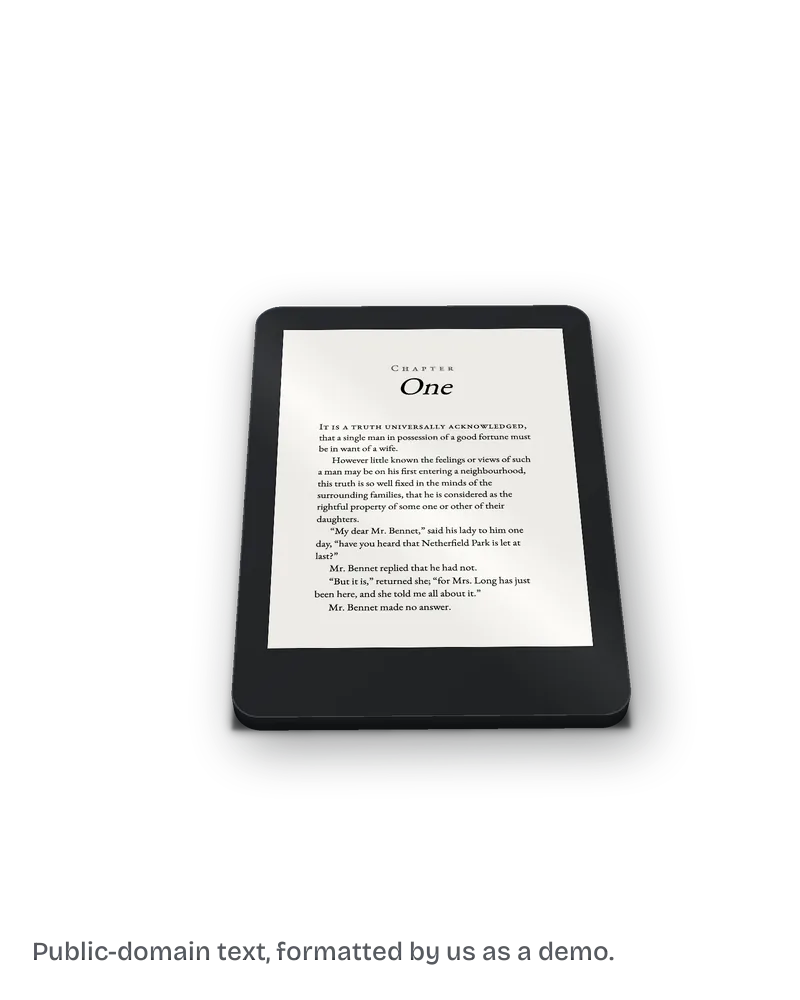
Check three things: file type, conversion and the table of contents. KDP accepts Word (DOC or DOCX), EPUB and its own KPF format, among others, and MOBI is out. Open the converted ebook in Kindle Previewer and check it. Apply the Heading 1 style to each chapter title so the table of contents can be built from them. If you wrote the book in Google Docs, our guide on how to format an ebook for Kindle in Google Docs covers the same steps there.
Ebooks fail for different reasons. Three to check:
- File type. KDP accepts Word (DOC or DOCX), EPUB and its own KPF format, among others. It describes KPF, made with its Kindle Create tool, as a go-to method for avoiding formatting issues. MOBI is out: KDP ended support for MOBI files on reflowable ebooks on August 1, 2021, and "effective March 18, 2025" no longer supports them for fixed-layout ebooks. KDP's advice is to use EPUB, DOCX or KPF. Sources: What file formats are supported for eBook manuscripts? and MOBI Support for eBooks FAQ.
- Conversion. Most Word files convert well, but files with complex formatting may not. KDP tells you to open the converted ebook in Kindle Previewer and check it. For EPUB, validate the file in Kindle Previewer before uploading.
- Table of contents. Apply the Heading 1 style to each chapter title as you write, so the table of contents can be built from them and the links work. KDP says ebooks are reflowable, so page numbers and page count do not apply, and you do not need headers or footers. Source: eBook Manuscript Formatting Guide.
In what order should you fix the file?
Fix the page size first, then the margins with the gutter matched to your page count, then bleed, then placeholder text and extra blank pages. Export a PDF with fonts embedded, check the title and author name against your book details, run the file through the Print Previewer and order a printed proof before you approve the book.
- Set the page size to your trim size.
- Set the margins, with the gutter matched to your page count.
- Decide whether you need bleed, and tell KDP the same thing in the print options.
- Remove placeholder text and extra blank pages.
- Export a PDF with fonts embedded.
- Check the title and author name against your book details.
- Run the file through the Print Previewer and fix what it flags.
- Order a printed proof before you approve the book.
What else do authors ask?
No. KDP offers free templates, Kindle Create and the Previewer, but it expects you to fix the file yourself. Its template page tells you to customise the template and remove what you do not need. Source: Paperback and Hardcover Manuscript Templates.
Some of them, and it shows you exactly what you submitted. KDP is clear that a problem that is also in your manuscript file, such as typos, streaks or blurry images, is not treated as a manufacturing defect. Source: My proof or author copy has printing errors.
KDP's advice is to update the file in its original program and create a new PDF to upload.
Want it done once, and right?
Who runs these checks? Our production team runs them on every file we format. Clean Page Press is a service of DistroCode LLC, and our other KDP formatting guides cover the rest of the rules we check files against.
We format the interior for ebook and paperback, check the ebook in Kindle Previewer and the paperback against KDP's print specs before you see it. If KDP rejects our files for a formatting reason within 60 days of delivery, we fix them free until they are accepted. Start with a free sample of up to 1,300 words of your own book, one per author, back in 2 business days: ask for your free sample.
Facts in this post were checked against KDP's help pages on 2026-10-12. KDP changes its rules, so check the linked pages before you rely on a number.