Short answer. How to format a book for KDP in Word: set the page size to your trim size, then the margins for your page count. Style the text, add page numbers and export a PDF with fonts embedded. Run it through KDP's Print Previewer and fix what it flags. An ebook is shorter: clean styles, Heading 1 chapters, no page numbers.
This guide follows KDP's own help pages, checked on 2026-10-12. Menu names can differ by Word version. KDP publishes separate walkthroughs for Word for Windows and Word for Mac, linked below. Your cover is not part of this: it is a separate full wrap file, sized to your final page count and uploaded as a PDF. If you would rather skip the formatting, we do both for you: paperback interior formatting and Kindle ebook formatting.
What do you need before you start?
Finish the text first, because formatting keeps every typo. Then choose a trim size: the most common U.S. paperback size is 6 x 9 inches, and it is KDP's default. Decide whether you need bleed (only if images or backgrounds reach the page edge), and consider starting from KDP's paperback formatting template.
- Finish the text first. Formatting keeps every typo, so edit and proofread before you format.
- Choose a trim size. The most common U.S. paperback size is 6 x 9 inches, and it is KDP's default. A book wider than 6.12 inches or taller than 9 inches is a "large trim size" with different printing costs. Source: Set Trim Size, Bleed, and Margins.
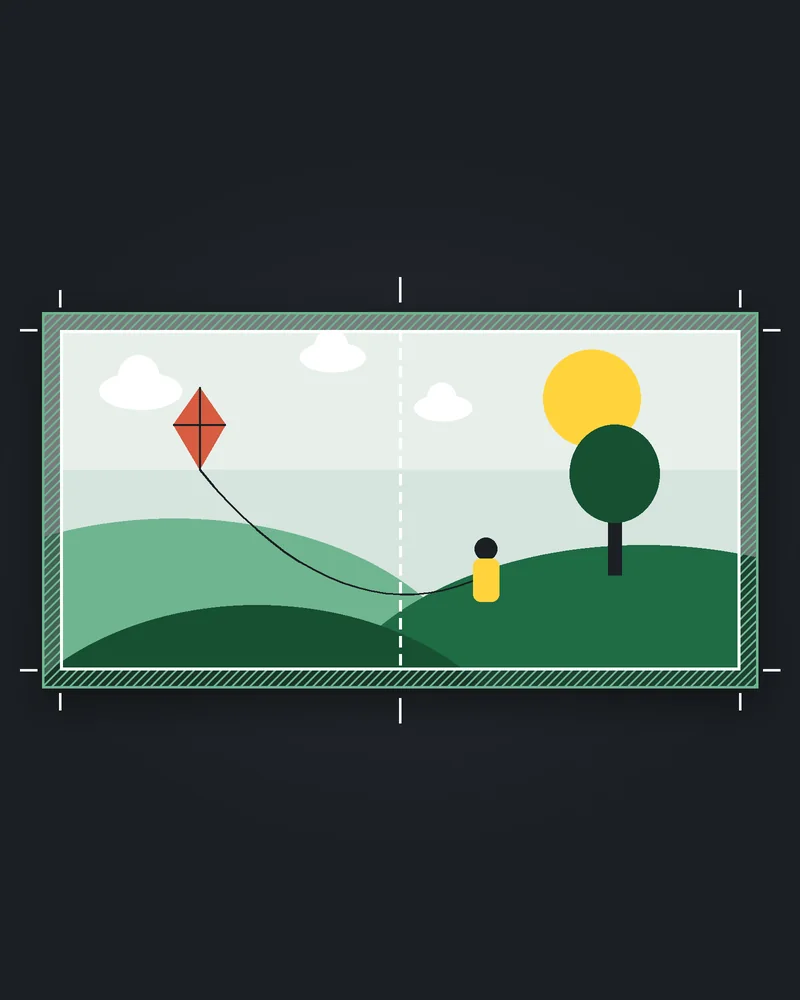
- Decide whether you need bleed. Only if images or backgrounds reach the page edge. If even one page does, set up the whole file with bleed.
- Consider starting from KDP's template. KDP offers free Word templates, blank or with sample content, sorted by trim size. They have the page size and margins set, and you delete what you do not need. Remove all placeholder text, because leftover template text can cause an upload error or rejection. Source: Paperback and Hardcover Manuscript Templates.
How do you format a book for KDP in Word as a paperback?
Set the page size to your trim size first, then the margins for your page count. Style the text, add page numbers and export a PDF with fonts embedded. Run it through KDP's Print Previewer and fix what it flags. The steps below follow KDP's Format a Paperback Manuscript (Word for Windows) walkthrough.
Step 1. Set the page size
On the Layout tab, open Size, choose More Paper Sizes, and enter your trim size. Apply it to the whole document. If you use bleed, add 0.125 inch to the width and 0.25 inch to the height, so a 6 x 9 inch book becomes a 6.125 x 9.25 inch page.
Do this before anything else, and before you paste in the text.
Step 2. Set the margins
Set margins after the page size, because the minimum inside margin depends on page count. Open Custom Margins, and in the Multiple pages list choose Mirror margins. KDP's walkthrough says "Do not enter any value into the Gutter field."
KDP's minimums:
| Minimum | |
|---|---|
| Top, bottom, outside, no bleed | 0.25 inch |
| Top, bottom, outside, with bleed | 0.375 inch |
| Inside, 24 to 150 pages | 0.375 inch |
| Inside, 151 to 300 pages | 0.5 inch |
| Inside, 301 to 500 pages | 0.625 inch |
| Inside, 501 to 700 pages | 0.75 inch |
| Inside, 701 to 828 pages | 0.875 inch |
If the page count changes later, recheck the inside margin. More detail in our post on KDP margins for 6x9 and other trim sizes by page count.
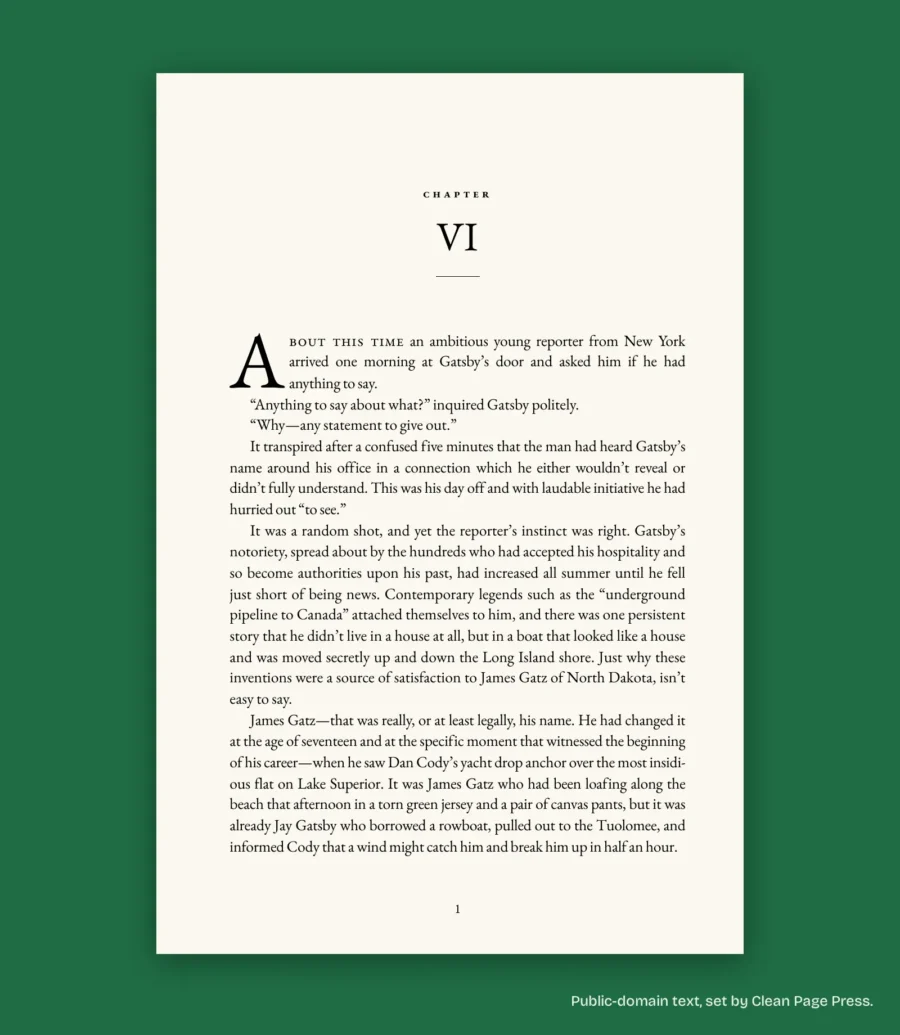
For reference, the 6 x 9 sample chapter from The Great Gatsby that we set on October 10, 2026 uses 0.75 inch inside and 0.6 inch outside, with 34 lines a page and every font embedded. Its 12 pages in Word became 14 at that size, which is why the margins come after the page size and get rechecked at the end.
Step 3. Style the body text
Change the Normal style once, rather than formatting paragraph by paragraph. KDP's walkthrough sets a font and size (it suggests 9 to 12 point depending on the font), justified alignment, a first-line indent, and no space before or after paragraphs. Style chapter titles with the Heading 1 style, so you can find and navigate them later.
Use the Page Break command, not repeated presses of Enter. KDP's ebook guide warns that hard returns "can change the design of your book in unintended ways", and for paperbacks KDP allows no more than 4 consecutive blank pages at the beginning or middle of a manuscript, and no more than 10 at the end.
Step 4. Add front and back matter
KDP's paperback help lists the elements to create: title page, copyright page, chapter headings and an author bio. Put each front matter page on its own page with a page break. Source: Format Your Paperback.
Step 5. Section breaks and page numbers
On the Layout tab, open Breaks and choose Next Page. Add one after the front matter and at the end of each chapter, so each part starts on its own page.
For page numbers, KDP's walkthrough puts them in the bottom footer with a plain number style. Body pages start at 1, and the front matter uses small Roman numerals. Unlink the footer from the previous section so the two sections number separately, and use Different First Page to hide numbers on title pages and chapter openers. Headers are an advanced option that uses section breaks and Different Odd and Even Pages.
Step 6. Check before you export
- Turn on the formatting marks (the pilcrow ¶ button). Hidden spaces or characters that extend past the margin are considered text characters and trigger an error in Print Previewer.
- Press Ctrl+A to highlight everything on a page and spot stray objects.
- Check that nothing sits outside the margins, including images and page numbers.
- Search for placeholder text from the template.
Source: Fix Paperback and Hardcover Formatting Issues.
Step 7. Export a PDF with fonts embedded
KDP says that for the best results you should convert your manuscript to PDF before uploading. If the book has bleed, you must upload a PDF. Its guidance:
- Embed all fonts in the file before you submit, and fully rather than as subsets.
- Flatten transparent objects and layers.
- Turn off downsampling of images.
KDP points to its own page, "Convert a Paperback Word File to PDF", for the Word-specific export settings. Open that page for the exact options in your version of Word. Source: Save Your Manuscript File.
Step 8. Upload and use the Print Previewer
Upload the PDF and open the Print Previewer. It flags errors you must fix before you can submit, explains each one and links to the pages affected. Fix the file in Word, export a new PDF and upload again. After you submit, KDP also reviews the files and emails you if it finds problems. Then order a proof copy to see the printed book. Our post on how to upload a paperback to KDP goes through the three setup screens in order.
Prefer software to Word? Atticus vs Vellum compares the main options.
Steps 1 to 8 are the fix we do. Our paperback interior formatting sets the page size, mirror margins, styles and page numbers for your page count and checks the PDF against KDP's print specs before you see it.
How is the ebook different?
Ebooks use the same Word file, but different rules, because the text reflows to the reader's screen. These steps follow KDP's eBook Manuscript Formatting Guide. For every rule that changes between the two, see our side by side of ebook vs paperback formatting.
- Apply Heading 1 to every chapter title as you write. It helps when you build a table of contents.
- Set paragraphs the ebook way. KDP says tab spacing does not convert to Kindle, so indent paragraphs with a first-line indent of 0.2 inch (5 mm), set spacing before and after to 0 pt, and line spacing to Single.
- Use page breaks. They make your text display where you want one page to end and the next to begin.
- Include a title page with the book title and author name, plus any dedication and an optional copyright page.
- Skip page numbers, headers and footers. KDP says ebooks are reflowable, so page numbers and page count do not apply, and ebooks do not have headers and footers.
- Use images, not text boxes or shapes, for diagrams. KDP does not recommend text boxes and shapes for them.
- Build a table of contents, so chapters are linked and clickable. In Kindle Create, KDP says you can create one for both PC and Mac. If the links do not work, our post on a Kindle table of contents not working shows how to fix it.
- Upload and check. KDP says most DOC and DOCX files convert well, but files with complex formatting may not. Use Kindle Previewer to check the converted ebook. KDP also accepts EPUB, and calls KPF, made in Kindle Create, a go-to method for avoiding formatting issues. MOBI is out for reflowable ebooks: KDP ended support for MOBI files on August 1, 2021. Sources: What file formats are supported for eBook manuscripts? and MOBI Support for eBooks FAQ.
Which mistakes catch people out?
Setting the margins before the page size, or leaving the page size at letter, catches people out, and so does using the Gutter field in Word when KDP says to leave it empty. Pressing Enter to start a new page, forgetting to embed fonts when you export and leaving template text in the file are three more.
- Setting the margins before the page size, or leaving the page size at letter.
- Using the Gutter field in Word, when KDP says to leave it empty.
- Pressing Enter to start a new page.
- Forgetting to embed fonts when you export.
- Reusing the margins of a shorter book after your page count grows.
- Leaving template text in the file.
Our post on why KDP keeps rejecting books covers the rest.
What else do authors ask?
This post covers Word only. KDP accepts several file types for a paperback without bleed, including DOC, DOCX, PDF, RTF, HTML and TXT, and recommends converting to PDF first.
For a paperback without bleed you can upload other types, but KDP recommends PDF. With bleed, a PDF is required.
That depends on the length of your book and how well you know Word's styles, so there is no single number. For the price of hiring it out, see how much book formatting costs.
Want to skip all of this?
Send us your manuscript and trim size. We format up to 1,300 words free, one sample per author, back in 2 business days, so you can see the result. If you order, we check the ebook in Kindle Previewer and the paperback against KDP's print specs. If KDP rejects our files for a formatting reason within 60 days of delivery, we fix them free until they are accepted: ask for your free sample.
Steps and numbers were checked against KDP's help pages on 2026-10-12. Word menus vary by version, and KDP can change its rules. Check the linked pages before you rely on a figure.