Short answer. How do you upload a paperback to KDP? Go to your Bookshelf, click + Create and choose paperback. Then work through three steps: book details (title, author, description, keywords, categories), content (ISBN, print options, interior PDF, cover PDF, Print Previewer), and rights and pricing. Set the trim size and bleed to match your PDF first, and approve the preview.
Key points
- Three steps: book details, upload and preview, rights and pricing.
- The title, author and ISBN you type must match the title page and copyright page in the file.
- Pick ink, paper, trim and bleed before you upload. KDP locks the ink type after publishing.
- Print Previewer must pass before you can submit or order a proof.
- Review takes up to 72 hours for Amazon.com, and longer for other marketplaces.
What do I need before I upload a paperback to KDP?
Four things, finished: the interior PDF at your trim size, the cover PDF sized to your final page count, your listing text, and your ISBN decision.
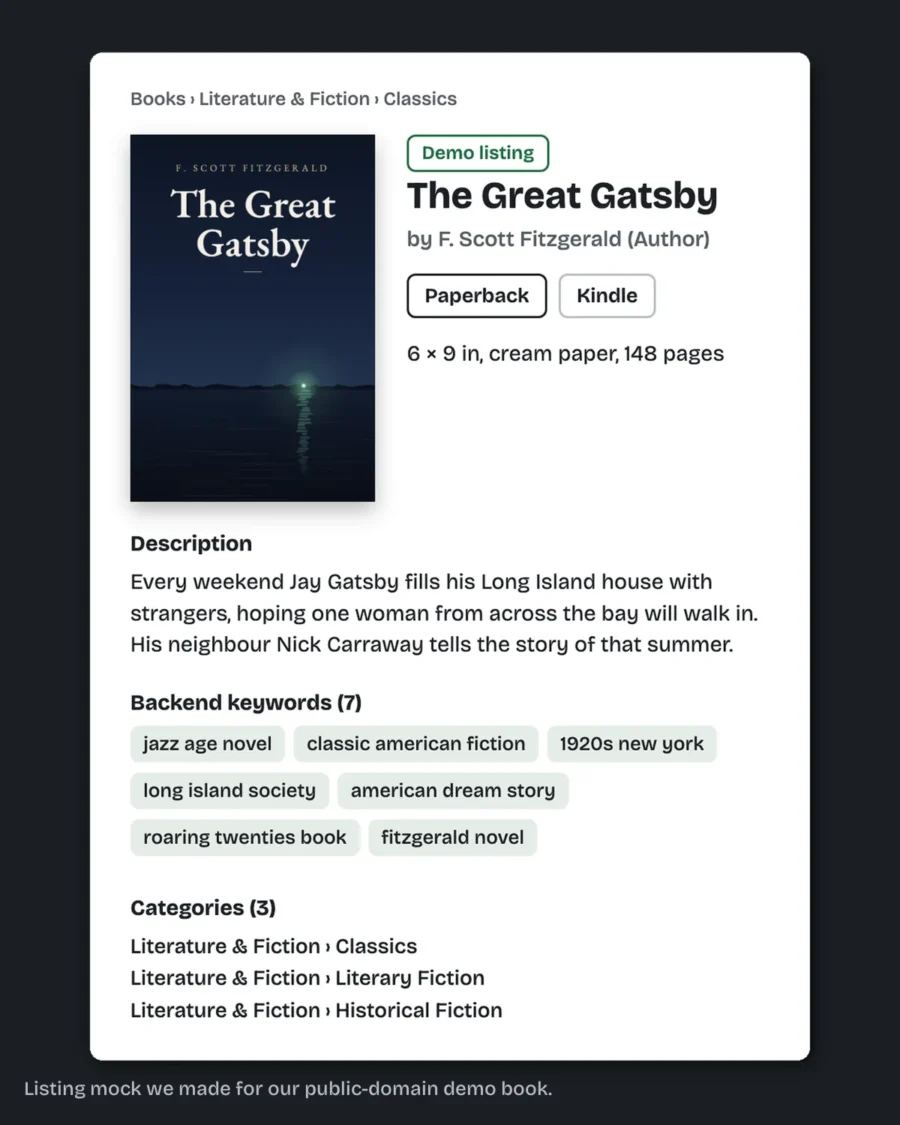
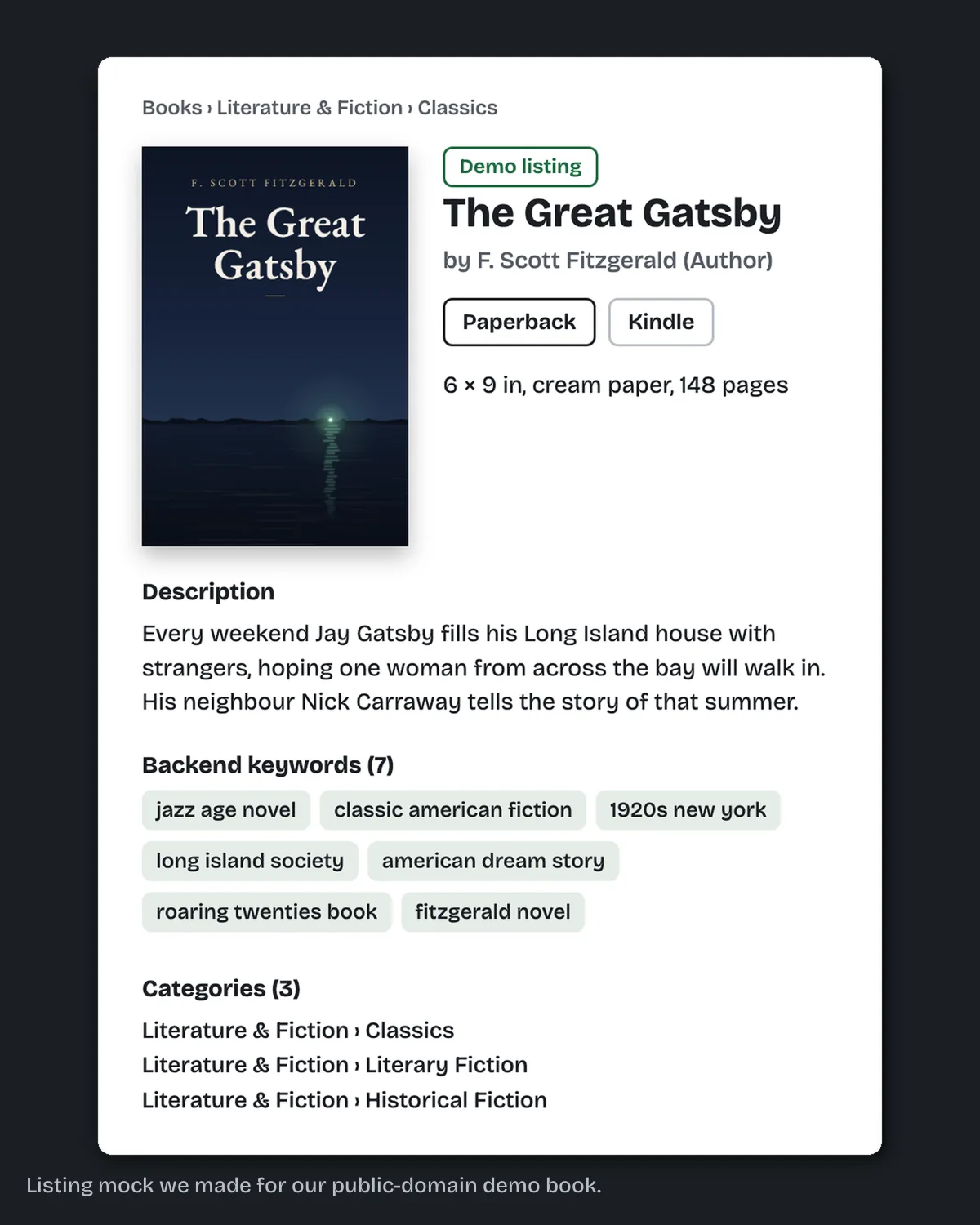
The listing text is the part people leave until the screen is open in front of them: the description, 7 keywords and the categories. The description has a 4,000-character limit that counts its HTML tags, and our post on Amazon book description length explains how to use it. Our KDP upload and listing prep service writes that text ready to paste, and you do the upload in your own account.
Step 1: what goes in the book details?
The title and subtitle, edition, authors and contributors, description, keywords and categories. KDP does not accept HTML tags in the title, subtitle, author, contributors or keywords fields. Our post on KDP categories explains how many you get and how to pick them.
Type the title and author exactly as they appear in the file. KDP's help says the title, subtitle, author name, series and ISBN in your manuscript must match the details you enter. Its example is as small as "John T. Smith" on one side and "J.T. Smith" on the other.
Paperback title, subtitle and author can be edited for 72 hours after first publication and are then locked. The description stays editable. So the details step is the one to get right the first time.
Step 2: which ISBN should I choose?
Each format needs its own ISBN. KDP offers a free one for paperbacks and hardcovers, or you can enter your own. Two facts decide it.
A free KDP ISBN "can only be used on KDP." If you later want the same paperback on IngramSpark, it needs its own ISBN. With a free ISBN, the imprint shows as "Independently published." With your own ISBN you can list your own imprint, but KDP checks it against what the ISBN agency (Bowker, in the US) has on file, and a mismatch stops publishing. KDP notes that even extra spaces at the end of the imprint name can cause the error. Our post on KDP ISBN vs own ISBN covers when buying your own is worth it.
Step 2: what print options do I pick?
Ink and paper, trim size, bleed and cover finish. Choose them before you upload anything, because KDP asks for print options before it lets you preview.
Pick the trim size your PDF was built at. Pick bleed only if your PDF is larger than the trim (a 6 x 9 bleed file is 6.125 x 9.25 inches). Pick the paper you sized your cover for, since cream and white give different spine widths.
KDP locks the ink type after publication, so a black and white book stays black and white.
Step 2: how do I upload the interior and cover?
In the Manuscript section, upload your interior PDF. In the Book Cover section, upload your cover as one PDF with back, spine and front together, or build one in KDP's Cover Creator.
We checked our own 14-page Gatsby sample book before writing this. On 14 October 2026, pdfinfo showed a page size of 432 x 648 points, which is 6 x 9 inches, and pdffonts showed every font embedded. The Word export we started from was a 12-page letter-size PDF, so the size had to change between the two files. Page size and embedded fonts are both on the list Print Previewer checks, so they are worth measuring before you upload.
The fix we do for this: we write your description, 7 keywords, 3 categories and title and subtitle fields as text ready to paste for $99 in 2 business days, then check your Print Previewer screenshots after you upload. We never log in to your account. Tell us about your book.
Step 2: what does Print Previewer check?
Page size against trim and bleed, text outside the margins or in the gutter, embedded fonts, cover size against trim, paper and page count, image resolution and blank pages. Size, margin and font problems block submission. Low image resolution is a warning. If KDP refuses the file at upload, our post on Amazon KDP manuscript upload errors covers the five causes we check first.
Turn every page. When it looks right, approve the preview. You need that approval before you can submit or order a proof copy. Our post on why KDP keeps rejecting a book, with 10 formatting fixes covers each flag.
Step 3: what goes in rights and pricing?
Your price, your royalty rate and your agreement to KDP's terms. Print books take one price in your main marketplace or a price per marketplace, and KDP shows the printing cost for your trim, page count, ink and paper. You can change the price at any time after the book is published, and the price is yours to set.
How long does KDP take after I publish?
KDP's Timelines page gives up to 72 hours for a paperback to appear on Amazon.com, and longer for some other marketplaces. While it waits, the book shows In Review. If it drops back to Draft, KDP has emailed you a problem to fix. If it sits In Review past the usual review time, our KDP review process post explains how long it should take and what to do when it stalls.
What else do authors ask about uploading a paperback to KDP?
They can, but it means sharing your KDP login. We do not ask for it. You upload with a guide, and we check your screenshots.
No. The free KDP ISBN works on KDP. It cannot be used outside KDP.
Up to 2 new titles per format each week. The limit resets every Sunday at midnight UTC.
Yes, once the preview is approved.
Yes, automatically, if the author name and book title of both editions match exactly.
What should you do next?
Have the interior PDF, the cover PDF, your listing text and your ISBN choice ready, then open KDP. Description and keywords still blank? The $99 listing prep on our KDP upload and listing prep page writes them ready to paste, and you stay the only one in your account.